Beltroni AI - Integration Guide: Robots, iOS, Android, Car Dashboards & Embedded Devices
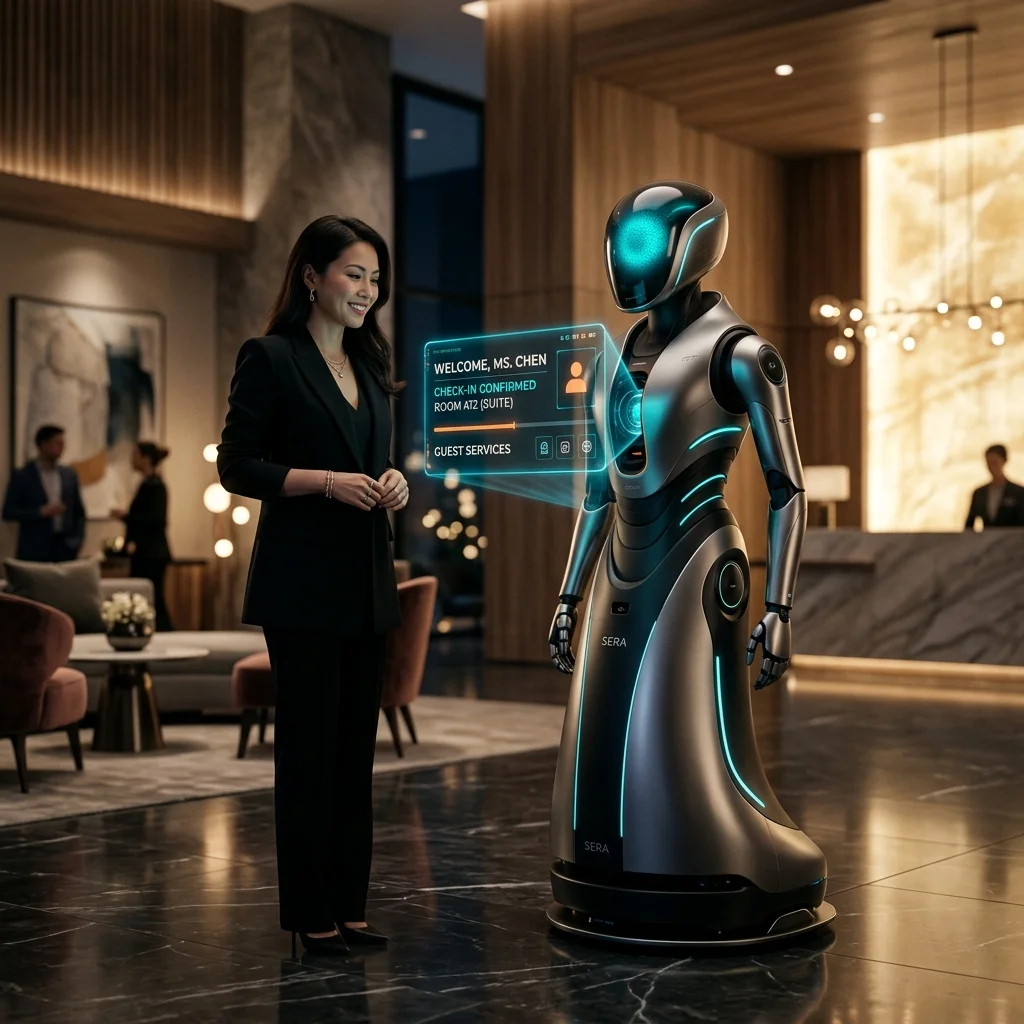
Expanding your AI workforce beyond the web is a critical step for modern businesses. Whether you are building in React Native, Flutter, or native Swift/Kotlin, the Beltroni AI agent can be seamlessly embedded into your mobile application using high-performance bridge components.
Note: The Beltroni AI Agent is already mobile responsive by default. When integrated into a mobile-responsive website, it automatically provides a premium, app-like experience for smartphone users. This guide is specifically for developers who wish to create native apps for Robots, iOS, Android, Car Dashboards, and other edge embedded devices.
The Mobile-First AI Strategy
Mobile users expect low latency and high responsiveness. By using our "Native Bridge" approach, you can provide the full Beltroni experience—including real-time voice and video—without the overhead of building custom socket layers.
Beltroni AI
Add Your AI Agent
to Your Robots, Embedded Apps, Dashboards or Websites
Copy one line of code and paste it into your site.
No developer needed.
Your Embed Code
Use a WebView component (e.g., WKWebView for iOS, WebView for Android) in your mobile or robotic framework.
Initialize the WebView to load your unique Beltroni Agent URL (found in your dashboard).
Enable "javaScriptEnabled" and "domStorageEnabled" in your WebView settings.
Ensure your app's bundle ID or deployment domain is registered in the "Allowed Domains" list.
Embedded Implementation Tips
- React Native: Use
react-native-webview. Wrap the script in a standard<html>template. - Flutter: Use
webview_flutter. Load the agent via a hosted bridge URL for easiest management. - iOS (Swift/SwiftUI): Use
WKWebView. Ensure yourInfo.plistallows the Beltroni API domains. - Android (Kotlin/Java): Use
WebView. EnabledomStorageEnabledfor best performance.
How it works: The Bridge Architecture
The core of the mobile integration is a specialized container that hosts our Agent Loader. This allows you to maintain a single "Master Brain" for your AI agent that works identically across web and mobile platforms.
- Cross-Platform Consistency: Your agent's training, memory, and personality remain perfectly synced between your website and your app.
- Native Performance: Modern WebView engines (like WKWebView on iOS) provide hardware-accelerated rendering for smooth animations and transitions.
- Simplified Updates: Change your agent's configuration in the Beltroni dashboard, and it updates in your mobile app instantly—no app store resubmission required.
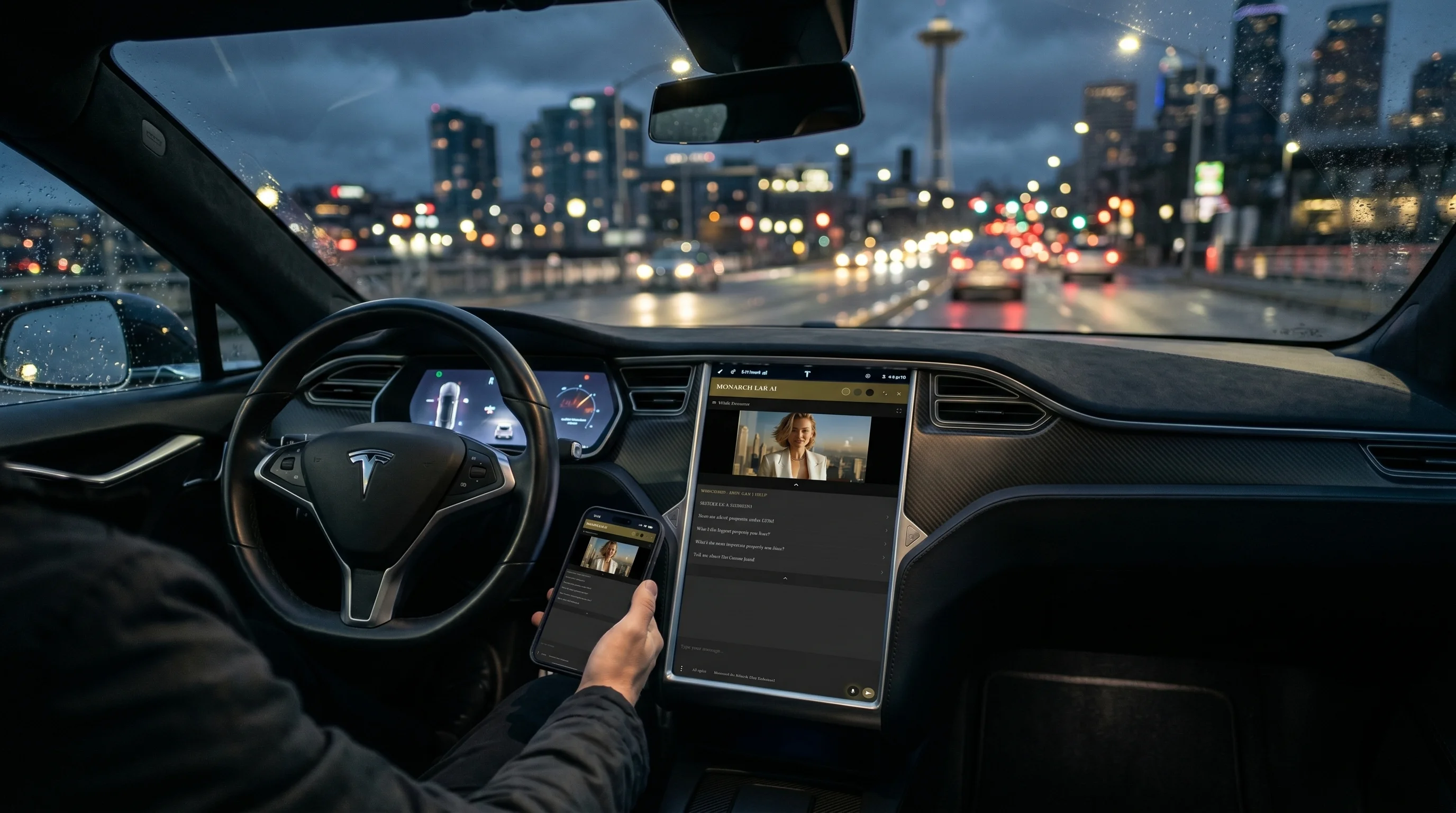
A Note on Performance
For the best experience, ensure that you enable Hardware Acceleration in your mobile container. On Android, this involves setting hardwareAccelerated="true" in your manifest, while on iOS, WKWebView handles this automatically.
Ready to Mobilize?
Head to your dashboard to start your mobile integration journey.
Test the Mobile UX
Launch a demo to see how our responsive interface scales to mobile screens.